
Logging in for the first time
When your organisation’s account is created, all specified users will receive an email with instructions on how to complete the user account set up process.
This email contains a link which will direct you to the web app. Here you will be prompted to create a password.
Once you’ve clicked ‘Confirm’ to create your password, you will automatically be logged into your account and the first page you will see is the Dashboard.
Logging in
To access your account, simply navigate to the following link:
https://app.personnelchecks.co.uk/login
Here you will be asked to enter your username and password, which are both case sensitive. Once entered, click ‘Login’ to open the web app.
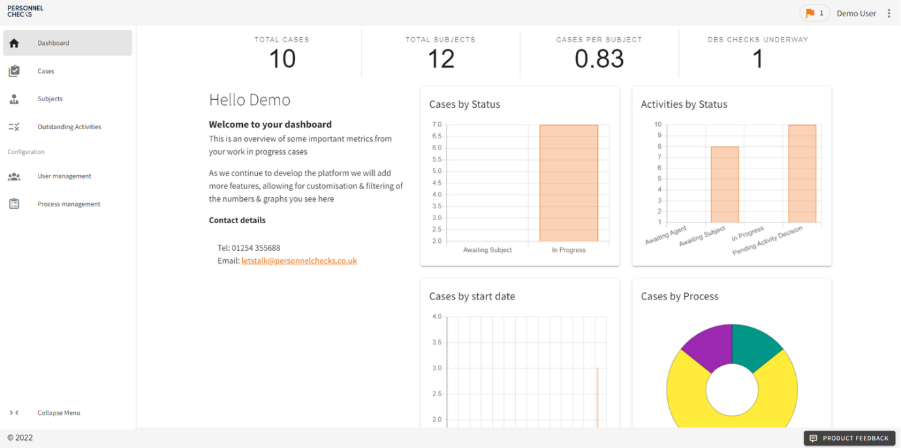
The first page you will see is your Dashboard.
Navigating the web app
There is a navigation bar on the left-hand side of the screen that allows you to easily get around the web app. On this bar, you will see several options listed. Simply click the relevant option to open that view.
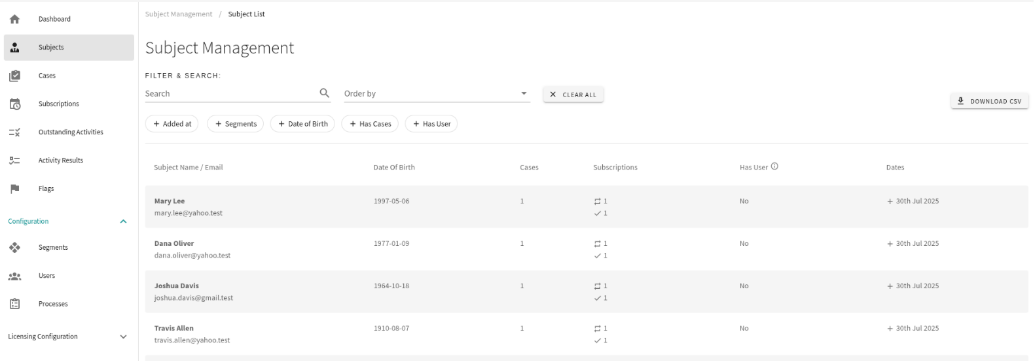
The options available on the left-hand navigation menu can vary depending on your organisation’s requirements as well as your User Role.
For example, Admin users will see all available options for your organisation including user management. Whereas Agent users will mainly be able to view information relating to Subject’s and Cases only.
You can find more information on what each of these screens shows in the glossary below.
List View Glossary
Dashboard:
This is the primary List View shown when you log into your account. Here you will see key data and visualisations based on the activities on your account.
Cases:
The Cases List View shows all the Cases that have been created on your organisation’s account. A Case is a working file that holds the details of a Subject as they go through compliance processes.
Subjects:
The Subject List View contains all the Subjects that have been created on your account. A Subject is the term for an individual who will be subject to compliance processes, e.g. "Subject Access Rights".
Outstanding Activities:
The Outstanding Activities List View is where you will find any cases that need your attention before they can be progressed. This list relies on triggered data to show areas of activities that you, the user, must complete to progress a Case.
Activity Results:
This List View shows all of your Case Activities, listed by Subject. Subjects will have multiple rows as this display is on a per case activity view. You can use the search and filtering options* to narrow down results that match specific criteria.
Flags:
Flags are a request for human attention on another object in the system, e.g. Non-Clear DBS. These Flags can be cleared & re-activated.
Segments:
Segments are a way to divide your organisations data*. Segments can be used for additional configuration e.g. branding/wording etc. Segments are usually used when your organisation has multiple sites, and you need a centralised view for head office.
*Segments are only available for monthly invoicing accounts.
Users:
The Users List view enables you to manage your organisations User accounts. Here you can manage permissions, roles and deactivate any users.
Processes:
A Process on our web app is a collection of pre-defined compliance criteria that Subjects can be processed through. The Process screen will show all the Processes that you have associated with your account.
Pending Payments:
This List View shows all Cases on your account that require a payment to be made before they can be progressed. This List View is only visible for pay in advance accounts.
Payment Settings:
This List View shows the payment methods that have been added to a pay in advance account. Only users with Payment Manager permissions can see this view.
*Filtering is available on all List Views