
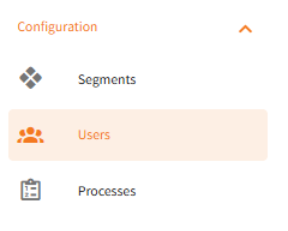
Navigate the users tab on the menu, it will be under the configuration heading
Press the ‘Add User’ button on the right
Input the details of the person you want to add, we recommend setting their username as their email address as this is easy for them to remember
You do not need to add anything in the ‘Job title’ field but you can if you wish.
Select the roles that you want them to have, depending on what you select will determine what permissions they have on the system.
Admin: somebody responsible for administering the users in their customer account.
Agent: somebody responsible for day-to-day compliance processes.
DBS ID Verifier: Someone who can perform ID verification for a DBS check.
Payment manager: Someone who can make payments for customer pays processes in the awaiting payments tab.
If the customer has segments, you will also need to select which segments they can view. If you have selected the admin role then they will automatically have access to all segments.
Once you have inputted all of the info, press ‘Save and Edit’
You will now be taken to the edit page, each user is set up in a draft state so you need to set them to active manually.
Press the ‘Set to Active’ button on the bottom right of the screen.
You can also enable notifications for the user on this screen if you wish, press the toggle button and select the boxes that you would like them to receive notifications about.
Press save at the bottom of the page.
You can edit users permissions and notification settings at any time.
If you need to reset a user’s password
Navigate the users tab on the webapp.
Search for the relevant user and click on their name
Press the ‘Reset password’ button.
If the user has never logged in before, press the ‘Resend welcome email’ button.