
The DBS Update Service allows employers to check if anything has changed on an individual’s Standard or Enhanced DBS Certificate since it was issued — without having to request a new DBS Check. Our platform supports automated Update Service Status Checks for individuals who are subscribed.
This guide explains what each status means, how the automated checking process works, and how to manage subscriptions efficiently.
What is a Status Check?
A Status Check involves querying the DBS Update Service to see if there have been any changes to a person’s criminal record since their certificate was issued. If they're subscribed to the Update Service, this can be done without repeating the full DBS application.
Automated checks can be set up to run on a schedule (e.g. every two weeks, monthly, or bi-annually). This helps organisations stay compliant with minimal manual effort.
Understanding the Status Results
Each time a Status Check is completed, one of three outcomes is returned:
No Status Change
The DBS certificate remains up to date, and no new information has been added.
(This outcome does not trigger a notification.)
Status Changed
New information may have been added since the certificate was issued. A new DBS Check is recommended to view this update.
No Active Subscription
The individual has not subscribed to the DBS Update Service or has let their subscription lapse. A new DBS Check will be required.
The second and third status listed above will be automatically flagged for your attention.
Setting Up Regular Status Checks
To use this feature, an individual must register their DBS certificate with the Update Service within 30 days of the certificate being issued. Once they're subscribed, the platform can run automatic checks at your chosen frequency.
Optionally, you can configure reminder emails to be sent to individuals who have not yet subscribed, encouraging them to sign up. These emails are issued every 3 days until the 30-day window closes.
Update Service Payment & Registration
The DBS Update Service is managed by the Disclosure and Barring Service. Individuals must register themselves via the official government website, paying £16 per year.
Registrations cannot be completed on someone’s behalf.
Importing Existing Subscriptions
If an individual already has an active Update Service subscription, this can be linked to their record on your account. Our support teams can assist with bulk imports of multiple individuals.
Alternatively, you can manually add subscriptions for specific cases. Once linked, the system can begin automatic checks as normal.
Adding a Subscription to an Existing Record
If someone has already completed a DBS Check, and you'd like to link their Update Service subscription, follow these steps:
 Confirm Update Service Details
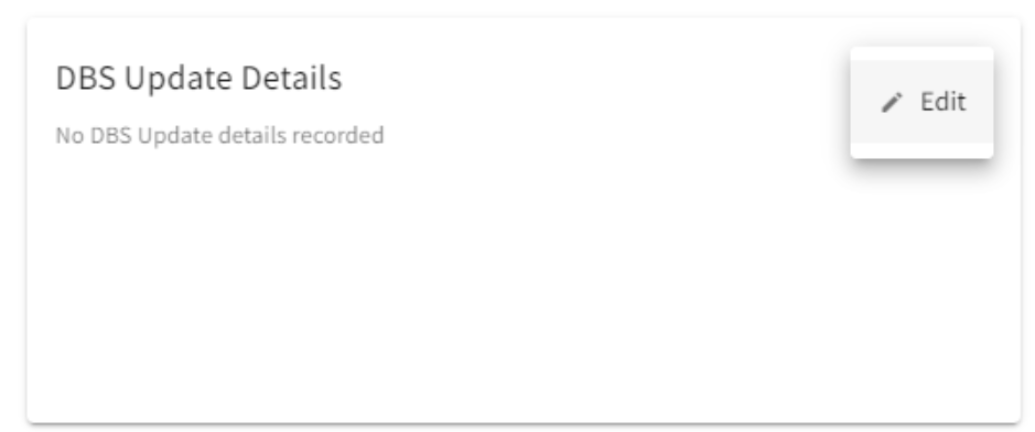
Check that there are Update Service details on the Subject. This information can be found in the top right-hand box on the Subject View. If the DBS was completed through Personnel Checks, then this data should be prepopulated, and you can skip this step.
If not, it will appear as below:
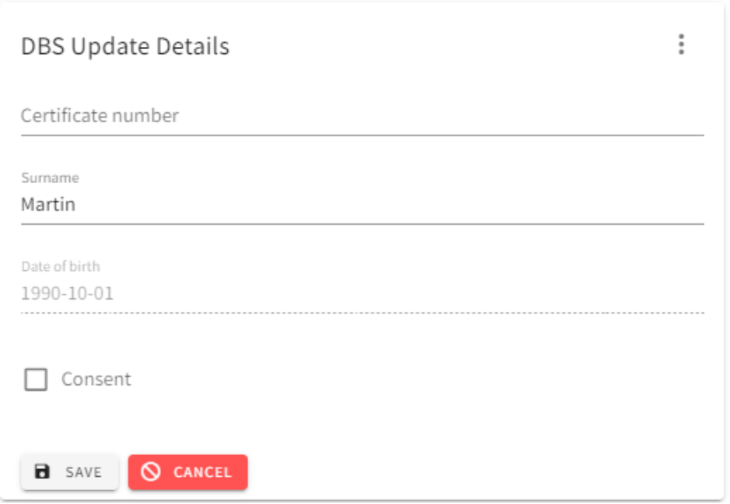
If there is no information, click the three dots in the top right-hand corner of this box, and then click Edit. You will then be able to manually add the Subjects DBS certificate data:
 Add the Subscription
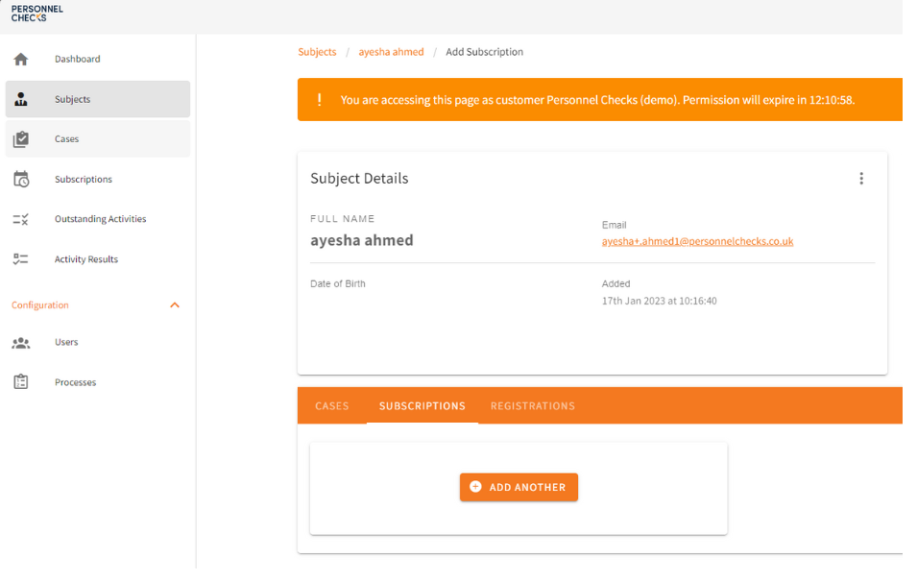
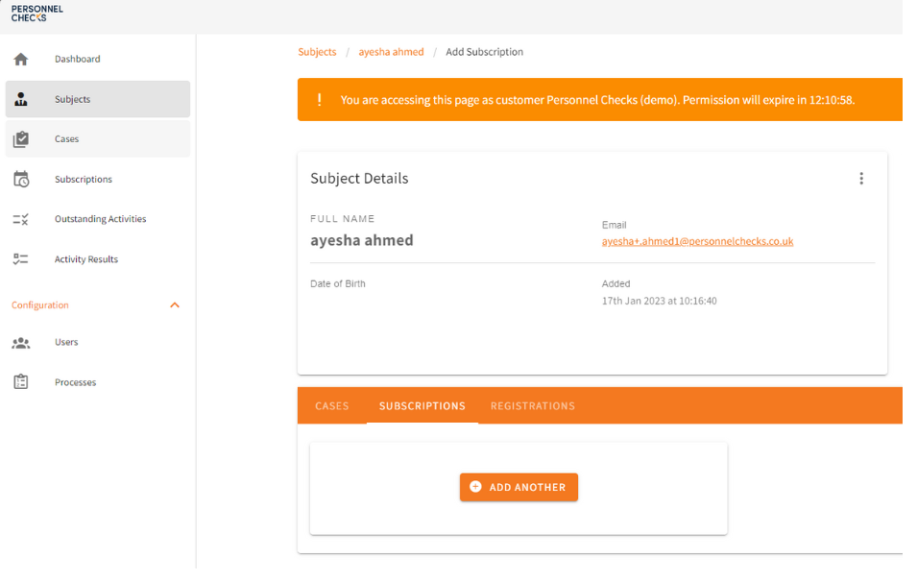
When the DBS Certificate information is present on the Subject, you can then add a Subscription for them. To do this, navigate to the Subject view and open the Subscriptions tab. You can see this below:
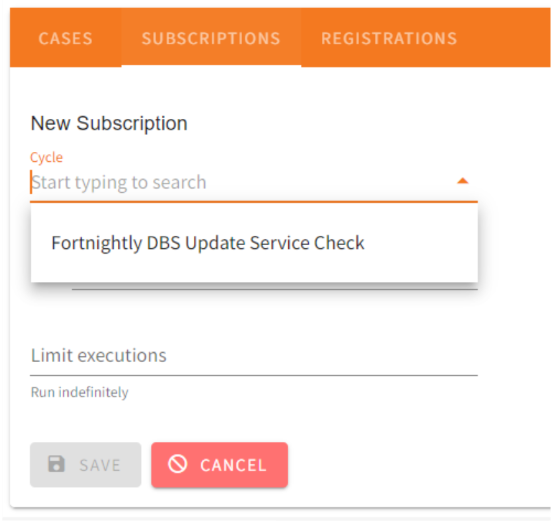 Click ‘Add Another’ to set up a Subscription for this Subject. This will bring up the box below. All you need to do is select the Cycle that has been set up for the Update Service. Select the date you would like it to start, and whether you want it to run a certain number of times. Then click save.
Managing Subscriptions
Subscriptions can be activated or deactivated at any time.
You can manage subscriptions:
Individually – via the Subject record
In bulk – via the main Subscriptions list
To activate, simply select the relevant record and choose “Activate”. To pause monitoring, select “Disable”. If someone has multiple subscriptions (e.g. across different roles or checks), they’ll appear as separate entries.